这篇文章将使用 Node.js 版 Playwright 来完成一个特定网站的在线课程学习任务。
课程网站介绍
这个网站是基于 Vue.js 构建的,在网页的源代码中可以发现引入了 vue.min.js、vue-router.min.js 和 vuex.min.js 等文件。这个网站需要使用用户名、密码和手机验证码登录,然后进入课程页面开始学习。课程页面包含课程列表,点击课程进入章节列表页面,点击章节进入视频列表页面,视频是使用 <video> 标签实现的,一个视频播放完成后会自动播放下一个视频。这些跳转都在一个浏览器页面中完成,因此这个网站是一个单页面应用?
创建项目和实现脚本
执行 mkdir course-helper && cd course-helper && npm init 创建项目并初始化,执行 npm i -D playwright@1.59.1 @playwright/test@1.59.1 安装依赖包,修改 package.json 文件添加启动脚本 "start": "node main.js"。最终的 package.json 文件如下:
1
2
3
4
5
6
7
8
9
10
11
12
13
14
15
| {
"name": "course-helper",
"version": "1.0.0",
"main": "main.js",
"scripts": {
"start": "node main.js"
},
"author": "",
"license": "ISC",
"description": "",
"devDependencies": {
"@playwright/test": "^1.59.1",
"playwright": "^1.59.1"
}
}
|
创建 main.js 文件并实现脚本:
1
2
3
4
5
6
7
8
9
10
11
12
13
14
15
16
17
18
19
20
21
22
23
24
25
26
27
28
29
30
31
32
33
34
35
36
37
38
39
40
41
42
43
44
45
46
47
48
49
50
51
52
53
54
55
56
57
58
59
60
61
62
63
64
65
66
67
68
69
70
71
72
73
74
75
76
77
78
79
80
81
82
83
84
85
86
87
88
89
90
91
92
93
94
95
96
97
98
99
100
101
102
103
104
105
106
107
108
109
110
111
112
113
114
115
116
117
118
119
120
121
122
123
124
125
126
127
128
129
130
131
132
133
134
135
136
137
138
139
140
141
142
143
144
145
146
147
148
149
150
151
152
153
154
155
156
| const { chromium } = require("playwright");
const { expect } = require("@playwright/test");
const main = async (cdpAddress, courseUrl, loggedIn, remaining = 10) => {
let browser, context, page;
try {
browser = await chromium.connectOverCDP(cdpAddress);
context = browser.contexts()[0];
page = await context.newPage();
await page.goto(courseUrl);
await expect(page.getByText(loggedIn)).toBeVisible({ timeout: 10000 });
const items = await page.locator("ul.by-timeline > li.by-timeline-item").evaluateAll(elements => {
return elements.map(element => {
const type = element.querySelector(".type");
const title = Array.from(element.querySelectorAll(".title-time span")).find(s => !s.className);
const completeStatus = element.querySelector(".complete-status");
return {
type: (type?.innerText || "").trim(),
title: (title?.innerText || "").trim(),
completeStatus: (completeStatus?.innerText || "").trim(),
};
});
});
await page.waitForTimeout(5000);
for (const item of items) {
if (item.type === "考试") {
continue;
}
await page.locator("li.by-timeline-item", { hasText: item.title }).first().click();
await page.waitForTimeout(5000);
await processCourse(page, remaining);
await page.goBack({ waitUntil: "networkidle" });
}
} catch (error) {
console.log("发生错误:", error);
} finally {
if (page && !page.isClosed()) {
await page.close();
}
if (browser) {
await browser.close();
}
}
};
const processCourse = async (page, remaining = 10) => {
await expect(page.locator("div.online-detail > div.online-course-item").first()).toBeVisible({ timeout: 10000 });
const items = await page.locator("div.online-detail > div.online-course-item").evaluateAll(elements => {
return elements.map(element => {
const title = element.querySelector(".by-tooltip-directive-reference");
const completeStatus = element.querySelector(".complete-status");
return {
title: (title?.innerText || "").trim(),
completeStatus: (completeStatus?.innerText || "").trim(),
};
});
});
for (const item of items) {
await page.locator("div.online-course-item", { hasText: item.title }).first().click();
await page.waitForTimeout(5000);
await playVideos(page, remaining);
await page.goBack({ waitUntil: "networkidle" });
}
};
const playVideos = async (page, remaining = 10) => {
await expect(page.locator("div.course-info-list").locator("ul")).toBeVisible({ timeout: 10000 });
const items = await page.locator("div.course-info-list").evaluate(element => {
const spans = element.querySelectorAll("span.course-name");
return Array.from(spans).map(span => {
return {
title: span.innerText.trim(),
}
});
});
for (const item of items) {
await page.locator("span.course-name", { hasText: item.title }).first().click();
await expect(page.locator("video.vjs-tech")).toBeVisible({ timeout: 10000 });
await page.evaluate(async (remaining) => {
const video = document.querySelector("video.vjs-tech");
if (!isFinite(video.duration)) {
await new Promise(resolve => video.addEventListener("loadedmetadata", () => resolve(), { once: true }));
}
video.currentTime = video.duration - remaining;
await new Promise(resolve => video.addEventListener("canplay", () => resolve(), { once: true }));
video.play();
await new Promise(resolve => video.addEventListener('ended', () => resolve(), { once: true }));
}, remaining);
}
}
const isValidUrl = (string) => {
try {
const url = new URL(string);
return url.protocol === 'http:' || url.protocol === 'https:';
} catch {
return false;
}
};
const cdpAddress = process.argv[2];
const courseUrl = process.argv[3];
const loggedIn = process.argv[4];
const remaining = process.argv[5] ? parseInt(process.argv[5]) : 10;
const errors = [];
if (!cdpAddress || !isValidUrl(cdpAddress)) {
errors.push(!cdpAddress ? "缺少 CDP 地址" : "CDP 地址格式错误");
}
if (!courseUrl || !isValidUrl(courseUrl)) {
errors.push(!courseUrl ? "缺少课程地址" : "课程地址格式错误");
}
if (!loggedIn) {
errors.push("缺少登录状态确认值");
}
if (errors.length > 0) {
console.log("用法一: node main.js <CDP地址> <课程地址> <登录状态确认值> [剩余秒数]");
console.log("用法二: npm run start -- <CDP地址> <课程地址> <登录状态确认值> [剩余秒数]");
console.log("错误:");
errors.forEach(error => console.log(` - ${error}`));
process.exit(1);
}
main(cdpAddress, courseUrl, loggedIn, remaining);
|
脚本解析
连接本地浏览器
一开始的想法是使用 readline 从控制台读取用户名、密码,然后获取手机验证码并在控制台输入,即从最初的登录开始实现脚本。这种方式在调试阶段很不方便,而 connectOverCDP 可以连接本地浏览器复用登录状态,只需要在本地浏览器登录一次就好了,其中 CDP 是 Chrome DevTools Protocol 的简写。要使用 CDP 需要为浏览器配置启动参数 --remote-debugging-port=9222,端口可以任意指定。下面以 Edge 浏览器为例
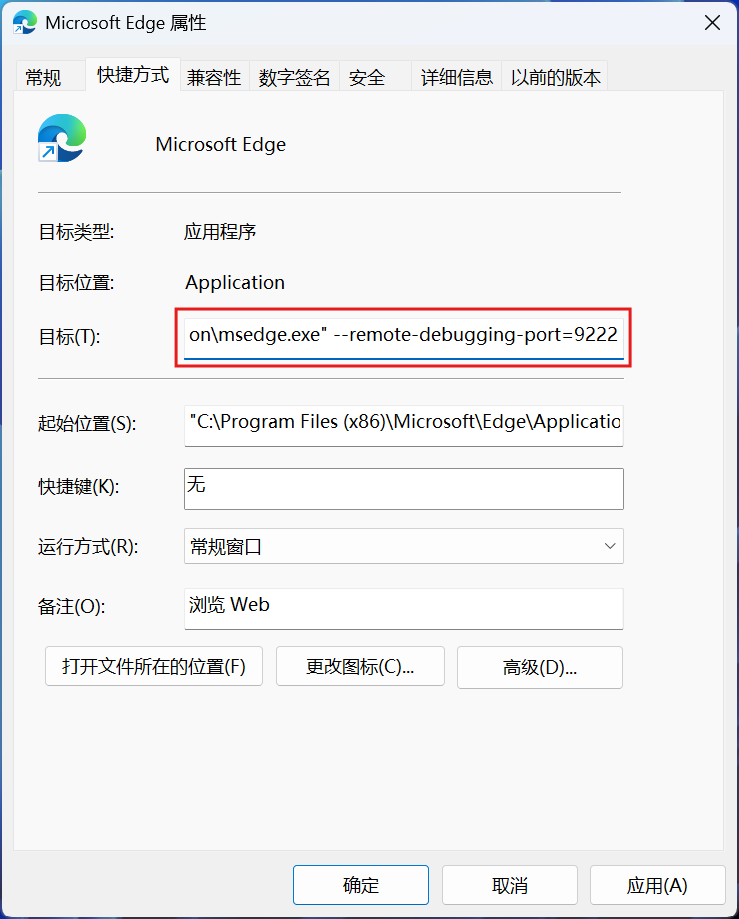
配置完成后重启浏览器,在浏览器中输入 http://localhost:9222/json/version 检查是否配置成功,成功时会看到类似下面的结果
1
2
3
4
5
6
7
8
| {
"Browser": "Edg/146.0.3856.97",
"Protocol-Version": "1.3",
"User-Agent": "Mozilla/5.0 (Windows NT 10.0; Win64; x64) AppleWebKit/537.36 (KHTML, like Gecko) Chrome/146.0.0.0 Safari/537.36 Edg/146.0.0.0",
"V8-Version": "14.6.22.11",
"WebKit-Version": "537.36 (@79f6730cd02cfe9f19d33d1db200bfcdea57cf21)",
"webSocketDebuggerUrl": "ws://localhost:9222/devtools/browser/c76e743f-9595-42c2-aa56-21a1bec5269d"
}
|
在示例配置下 CDP 地址为 http://127.0.0.1:9222。
注意脚本的第 9 行代码,新打开的浏览器 contexts 的长度为 0,但是我们肯定会登录一次,因此这里获取的是默认的 context。
判断登录状态
未登录的网站和已登录的网站显示的内容是不同的,因此脚本的第 14 行代码根据网页上的内容判断登录状态,这个内容应该是唯一的,不然脚本会报错。
获取课程列表
脚本第 16~27 行代码获取课程列表信息,传给 Locator#evaluateAll 的函数虽然定义在 Node.js 脚本中,但是它运行在浏览器中,因此不能使用 Node.js 的模块,只能使用浏览器的 API。第 31~47 行代码依次处理每一个课程。后面的章节和视频都采用这种先获取列表再依次处理每一项的思路。
播放视频
传递给 Page#evaluate 的函数也是在浏览器中执行,视频的剩余时间要通过 evaluate 的第 2 个参数来传递,参考第 120 行代码。
视频是异步加载的,因此要监听 loadedmetadata 事件来等待 duration 属性被设置,参考第 110 行代码。在第 113 行代码设置播放时间时,要等待视频加载完成,此时视频可能还不能播放,因此要监听 canplay 事件,参考第 115 行代码。
因为会自动播放下一个视频,因此要监听 ended 事件,参考第 119 行代码,然后将控制权交回 Playwright 进行下一个视频的播放。在这里走了一些弯路,一开始的思路是判断 video.ended 属性,但是在网站自动播放配置下可能错过值为 true 的时刻,导致 evaluate 超时,因此只能监听 ended 事件。